Roundup
The Best Image Compressor for Mac in 2026
The best image compressor for Mac depends on the job. For folders, WebP or AVIF output and mixed file types, use Smol ($29 once). For pixel-identical files, use ImageOptim (free). For one photo now and then, use Preview. In our tests Smol’s AVIF files were 20 to 22% smaller than ImageOptim’s JPEGs at the same quality.
We make Smol, so check our work: ten tools compared, six of them measured by us on public test images, with the settings and byte counts printed below. Where a free tool wins, we say so.
Which image compressor for Mac should you choose?
Find your job in the left column. If you stop reading here, you have the right pick.
| If you need | Use |
|---|---|
| Regular batches, WebP or AVIF output, images plus PDFs and video | Smol, $29 once |
| Lossless only: the same pixels in a slightly smaller PNG or JPEG | ImageOptim, free |
| One image smaller, right now, nothing installed | Preview or sips, free |
| To see the quality trade-off before you commit to it | Squoosh, free |
| A free app with a quality slider and WebP output | Caesium, free |
| A shell script or a cron job, no window at all | sips or caesiumclt, free |
| JPEG XL, SVG or ICNS output | Zipic, $29.99 |
| Compression inside a build pipeline, or on a borrowed PC | TinyPNG |
| Images, video and PDFs inside a Setapp subscription you already pay for | Compresto |
Compressing for a particular job? See Smol for photographers, e-commerce product images, web agencies, or getting an image under 100 KB.
How much smaller can a Mac image compressor make a photo?
Left: a 558 KB PNG from the Kodak test suite. Right: the 40 KB AVIF Smol made from it, the real file.
- 91.8%smaller
- 24 Kodak PNGs, 15.4 MB, became 1.26 MB of JPEG at Smol’s default quality.
- 7.3 sfor the folder
- Wall-clock time for those 24 files on an M2 Pro, averaged over three runs.
- 22%fewer bytes as AVIF
- Against Smol’s own JPEG at the same SSIMULACRA2 score.
The three numbers come from one run: all 24 Kodak images, each tool tuned to the same quality score, every output scored against its original. Jump to the results.
How do the ten compare at a glance?
Prices and limits are from each vendor’s own page, read on 5 October 2026. “Measured” means we ran it on the test images ourselves; the other four are compared on what their makers publish.
| Tool | Price | Free use | Writes | Your files | Measured |
|---|---|---|---|---|---|
| Smol | $29 once, 1 Mac | No trial | JPEG, PNG, WebP, AVIF, HEIC, GIF | Stay on your Mac | Yes |
| ImageOptim | Free | Unlimited | Same format in and out: PNG, JPEG, GIF, SVG | Stay on your Mac | Yes |
| Preview and sips | Free, built in | Unlimited | JPEG, PNG, HEIC, AVIF, TIFF. No WebP | Stay on your Mac | Yes |
| Squoosh | Free | One image at a time | JPEG, WebP, AVIF, JPEG XL, PNG | Stay in your browser | Yes |
| TinyPNG | Free web tool. API $0.009 an image after 500 a month | 20 images at once, 5 MB each | AVIF, JPEG XL, WebP, PNG, JPEG, APNG | Uploaded to TinyPNG | No |
| Zipic | $29.99 once, 2 devices | 25 images a day. No AVIF, no metadata removal | JPEG, PNG, WebP, HEIC, GIF. Pro adds AVIF, JPEG XL, SVG, ICNS | Stay on your Mac | Yes, free tier |
| Caesium | Free | Unlimited | JPEG, PNG, WebP | Stay on your Mac | Yes |
| Compresto | $49 once, 1 Mac | Not stated | JPEG, PNG, WebP, AVIF | Stay on your Mac | No |
| JPEGmini | $59 once, 3 devices | 50 images a day after a 7-day trial | JPEG only | Desktop app | No |
| Optimage | $15 once | 24 images a day | Not checked | Stay on your Mac | No |
Smol
A whole folder of smaller images, processed on your Mac. $29 once.
Choose Smol when shrinking images is part of your work: product photos for a shop, assets for a website, or a folder of client exports. You get batch compression, conversion and metadata removal in one window, and the same app handles PDFs, video and audio. There is no monthly quota and nothing is uploaded.
- Drop in your images or a folder.
- Choose JPEG for broad compatibility, or WebP or AVIF for the web, and set quality.
- Compress the batch and check the results before publishing.
Solo license · One Mac · All features included
What you are buying is output on a level with the best free tool we measured, for a whole folder at once. On JPEG and on WebP, Smol and Squoosh needed the same bytes for the same score across the 24 test images. Squoosh does one image at a time. Smol did 24 in 7.3 seconds.
Against ImageOptim, which most lists put first, the difference is the format. With ImageOptim’s lossy mode switched on, its JPEGs and Smol’s JPEGs came out level at the same score. Smol’s AVIF needed 20 to 22% fewer bytes than ImageOptim’s JPEG for that score, and 71 to 76% fewer than ImageOptim’s PNG when the photos started as PNG. ImageOptim cannot write AVIF or WebP, or convert anything. The numbers are in its entry below.
Against Apple’s built-in encoder the picture is closer than we would like to claim. At web quality Smol’s JPEGs needed 7 to 10% fewer bytes than sips for the same score. At high quality, a score of 85 or about our quality 90, sips was 6% ahead. The larger win is AVIF: Smol’s needed 15 to 21% fewer bytes than Apple’s AVIF at the same SSIMULACRA2 score, and 22 to 26% fewer than its own JPEG.
Defaults matter in a batch tool, so here are ours. Metadata is stripped: we checked a Sony camera file and every EXIF field was gone from Smol’s output while all of them survived sips. Chroma is 4:2:0 up to quality 75, 4:2:2 at 80 and 85, and full 4:4:4 from 90, which is why quality 90 costs noticeably more bytes than 85. Images are also resized to fit inside 2000 × 2000 px unless you change that, so raise the limit for large originals.
There is also a file-size target. We asked for an AVIF of 20 KB or less from the 557,596-byte kodim23 and got 10,182 bytes, inside the requested band. Two caveats. The target is a band, not a ceiling, and it is slow: around 28 seconds for one 768 × 512 image, against a third of a second for ordinary compression. It works toward a byte budget rather than a quality score, so every number in this article comes from ordinary compression.
Good at
- Whole folders, with WebP, AVIF and HEIC output
- JPEG and WebP on a level with Squoosh, without the one-at-a-time limit
- AVIF 20 to 22% smaller than ImageOptim’s JPEG at the same quality
- Strips metadata by default
- PDFs, video and audio in the same app
Weak at
- No lossless mode: use ImageOptim for that
- No JPEG XL, SVG or ICNS output
- macOS only, and there is no free trial
- Slower than a sips or Caesium script
Smol is $29 once for one Mac, or $49 for a team pack of three, with updates included and no subscription. There is no free trial and purchases are not refundable. Photographers and shops can read how it fits their work in Smol for photographers and Smol for e-commerce. The document side is measured separately in our PDF compressor roundup.
ImageOptim
Free, open source, and the only tool here that changes no pixels at all.
ImageOptim is a window over the best open-source optimizers: it ships oxipng, zopflipng, pngout, advpng, pngquant, gifsicle, jpegoptim, guetzli, svgcleaner and a MozJPEG build of jpegtran. Drop files in, get the same pixels in fewer bytes. We verified the lossless claim instead of repeating it, and it holds: an absolute pixel error of zero on every one of our six outputs, including the JPEG.
Where it beats everything else on this page is flat graphics. Our transparent badge went from 101,316 to 45,626 bytes, a 55% cut, with nothing lost. If you ship UI assets, diagrams or logos and the pixels must not change, this is the tool and it costs nothing.
Photographs are another matter. On 9 October we ran version 1.9.3 over the full 24-image Kodak suite. At its defaults it took 4.3% off the PNGs and 8.9% off the same photos saved as JPEG. That is about what lossless work can do for a photo (Caesium’s lossless mode managed 4.5% on the same PNGs), and it is why people drop a folder of pictures on ImageOptim and conclude it did nothing.
It does have a lossy mode, off by default, in Preferences. With it on at the default quality of 80 the JPEGs came out 63.8% smaller in under a second, and matched score for score they were level with Smol’s JPEGs. So for JPEG in, JPEG out, ImageOptim is as good as anything here and faster than we are. What it cannot do is leave JPEG and PNG behind. From the same files, Smol’s AVIF needed 20 to 22% fewer bytes than ImageOptim’s JPEG at the same score, and 71 to 76% fewer than its lossy PNG. Lossy mode also rewrites your files in place and moves the originals to the Trash, so fish them out before you empty it.
Its release situation is odd. The shipped build is 1.9.3, dated 29 October 2023 by its own Sparkle feed, yet the repository is alive: the latest commit to main landed 13 July 2026. That commit is PR #466, which stops ImageOptim pinning its worker processes to Apple Silicon efficiency cores, and it has never shipped. We confirmed the behavior: the bundled defaults.plist sets RunLowPriority to true, and ps -axo pid,nice,args showed every optimizer at nice 10.
The advertised workaround, defaults write net.pornel.ImageOptim RunLowPriority -bool false, changes nothing measurable on 1.9.3: the helpers stayed at nice 10, and three timed trials came out at 5.23 s median with it on against 5.52 s with it off. Speed is the practical cost: our six-file batch took 99.26 s. Its bundled oxipng is 9.0.0 against an upstream v10.2.1 released 2 September 2026.
Good at
- Pixel-identical output, verified
- Flat graphics, logos and screenshots
- Free, with no limits
Weak at
- Lossless barely helps photographs: 4.3% to 8.9% on the Kodak suite
- No WebP, AVIF or HEIC output, no conversion, no resizing
- Slow on PNGs: 17 to 21 seconds for 24 small files
- No release since October 2023
The full head-to-head, with every setting and timing, is on our ImageOptim alternative page and in the benchmark data.
macOS Preview and sips
Already installed, scriptable, and it writes AVIF.
For a single image, File → Export in Preview with the quality slider is a perfectly good answer and we are not going to pretend otherwise. For anything repeatable, sips is the underrated one: sips -s format jpeg -s formatOptions 60 in.png --out out.jpg works in any script, on any Mac, with nothing installed. A loop over our 24 test images finished in about half a second.
Its JPEG encoder is respectable. To match Smol’s score across the suite it needed 8 to 12% more bytes at web quality, and at high quality it was 6% smaller. Nobody should buy software over a gap that size.
On macOS 27 it also writes AVIF, which almost nobody knows. sips -s format avif -s formatOptions 75 produced a valid 46,967-byte AVIF from kodim07. Run sips --formats and read the Writable column yourself. Apple’s AVIF tied ours on SSIM and trailed on SSIMULACRA2, where it needed 18 to 26% more bytes for the same score.
Three sharp edges. WebP is listed as readable but not writable, and asking for it fails silently: sips -s format webp prints the file paths, exits 0, and writes no file. The quality scale is its own thing: formatOptions 50 lands where Smol’s quality 80 does, and the named preset best switches to 4:4:4 chroma and made our test file three times larger than formatOptions 95. And it keeps your EXIF. Camera model, timestamp and GPS all survived in our output, which matters if you are about to upload holiday photos.
Good at
- Free and already on every Mac
- Fast, and scriptable in one line
- Writes AVIF and HEIC on macOS 27
Weak at
- No WebP output, and no error when you ask for it
- Keeps EXIF, including GPS
- A folder means writing your own loop
If the loop is the part you would rather not write, a Finder Quick Action gets you right-click compression without Terminal.
Squoosh
The best quality comparison interface ever built for image compression.
Nothing else here lets you drag a divider across the image and watch the artifacts appear in real time, with two codecs either side and a live byte count. When you are deciding whether a hero image can survive AVIF at a low setting, Squoosh answers in ten seconds and every desktop app on this list answers in export-and-check cycles. It runs entirely in the browser, so nothing is uploaded.
We drove the web app in headless Chrome to get real numbers out of it. Across all 24 images, its JPEG and WebP output and Smol’s needed the same bytes for the same score. If you like what Squoosh does to one image, Smol does that to a folder. Its lossless OxiPNG pass saved 4.1% on the suite.
The maintenance picture needs stating precisely. The last commit to the default branch was 19 August 2024. In issue #1472, opened 18 May 2026 and titled “Abandoned?”, Jake Archibald replied the same day: “The problem is the folks who built it left Google, and Google refused to hand the project over, or maintain it. That said, I still have commit & publish access, so I was planning on updating the JPEG XL and AVIF codecs some point soon.” As of today the site is up and works.
The command-line build is the reason Squoosh cannot be your batch tool. @squoosh/cli was last published on 3 January 2023 and declares support for Node 12, 14 and 16 only. We installed it on Node v26.7.0 and it threw before encoding anything: TypeError: Cannot set property navigator of #<Object> which has only a getter.
Good at
- Live side-by-side preview of any two codecs
- Runs locally in the browser, on any computer
- Writes JPEG XL as well as AVIF and WebP
Weak at
- One image at a time
- The command-line build no longer runs
- No commits to the main branch since August 2024
Alternatives are laid out in our Squoosh alternatives comparison.
TinyPNG
The web tool everyone already knows, and a good API behind it.
TinyPNG earned its reputation on PNG quantization, and the free web tool remains the fastest way to make an image smaller on a computer that is not yours. Drop files on the page, download the results. Its current limits, from its own page, are up to 20 images at a time, 5 MB each, with format conversion limited to 3 images. It handles JPEG XL, AVIF, WebP, JPG, PNG and APNG.
The part worth paying for is the API. Tinify gives 500 compressions a month free with no payment method, then charges $0.009 per compression for the next 9,500 and $0.002 for the 10,000 after that. If you want compression inside a deploy step and not on a laptop, that is a reasonable way to buy it.
The trade-off is the obvious one and it is not small: your images go to somebody else’s servers. For product photography that is fine. For client work under NDA, medical images, unreleased designs or anything with faces and GPS coordinates in the EXIF, it is a policy decision before it is a technical one. The 5 MB and 20-file ceilings also rule out a folder of camera exports. We did not measure it: there is no way to run it on a set of files without sending them to TinyPNG.
Good at
- Nothing to install
- A real API for build pipelines
- Strong PNG quantization
Weak at
- Files are uploaded
- 20 images and 5 MB each on the free web tool
- Per-image pricing adds up on large libraries
The head-to-head is in Smol vs TinyPNG.
Zipic
The closest direct rival at the price, and it writes formats we do not.
Zipic sits at almost exactly our price and covers almost exactly our ground: drag and drop, batch, presets, local processing. Its site lists Personal at $29.99 for two devices and a Team license at $129.99 for ten, both one-time with lifetime updates, and a free tier that runs a seven-day Pro trial then settles at 25 images a day. Version 1.10.2 is a universal binary for macOS 13 or later, and there is a Windows beta.
It beats us on format breadth in a direction that matters to some people. Its Pro formats include JPEG XL, SVG, APNG and ICNS, and Smol writes none of those. It also ships a proper command-line tool inside the app bundle, which is how we tested it.
We ran the free tier on three of the Kodak images, which is what its daily limit allowed alongside a sweep of its six levels. At level 3, its balanced preset, kodim07 came out at 47,104 bytes; Smol at quality 75 produced 44,093 bytes at the same SSIM and SSIMULACRA2 scores, 6% smaller. Tuned to equal scores of 70 and 75 across the three images, Zipic needed 4 to 6% more bytes than Smol and beat sips. At its level 2 the two were level, and at its highest-quality level it was ahead of us, by about 10% on the one image we tested there. Call it a draw on JPEG.
The free tier is narrower than the feature list suggests. Asking the CLI for AVIF returned “Converting to AVIF is a Pro-only feature”, and --no-metadata returned “Removing image metadata is a Pro-only feature”. If you plan to stay on the free tier, your EXIF stays in your files.
Good at
- JPEG XL, SVG, APNG and ICNS output
- Two devices per license, and a Windows beta
- A real CLI, plus folder monitoring in Pro
Weak at
- Free tier: 25 images a day, no AVIF, no metadata removal
- No video or audio compression
- JPEGs 4 to 6% larger than ours at web-quality scores, level or ahead above that
Caesium
Free, open source, fast, and deliberately narrow.
Caesium is the free answer for people who want a lossy compressor with a window and a slider. The desktop app is version 2.8.5, released 17 May 2025, for macOS 12 or later; its engine, libcaesium, is actively developed, and the command-line build caesiumclt 1.5.0 came out on 16 September 2026. We measured the command-line build from Homebrew.
Two results stood out. On WebP it was level with Smol and Squoosh, so there is nothing to choose between the three. And it is the fastest tool here: the whole suite to JPEG in 0.2 seconds.
JPEG is where it falls behind. It needed 13% more bytes than Smol at a score of 70, the gap widens from there, and it has a ceiling: at quality 95 its JPEGs averaged a SSIMULACRA2 score of 76 and never reached 80 on any of the 24 images, where Smol and sips go well past it. For web thumbnails that is plenty. For photographs you care about, it is the wrong encoder. Lossless mode saved 4.5% on the suite.
Good at
- Free, with no limits
- WebP level with Smol and Squoosh
- Very fast, with a scriptable CLI and a target-size mode
Weak at
- JPEG quality tops out early
- No AVIF or HEIC output
- Images only
The longer comparison is in our Caesium alternatives page.
Compresto
Images, video and PDFs in one Mac app, and it is on Setapp.
Compresto covers the same span we do: images, video, GIFs and PDFs, with a drop zone and folder monitoring, processed locally. Its pricing page lists Personal at $49 for one Mac and Standard at $69 for two, one-time with lifetime updates, and it is also sold as a subscription.
The useful reason to choose it is Setapp. If you already pay that subscription, Compresto is included, and paying $29 or $49 again for a second app that does the same job is hard to justify. We would not.
Its documentation lists JPG, PNG, WebP and AVIF as output formats, read from JPG, PNG, WebP, AVIF, HEIC, TIFF, BMP and static GIF, with five named quality levels in place of a number. We did not run it, so there are no Compresto numbers on this page and there will not be any until we can test it properly.
Good at
- Images, video, GIFs and PDFs in one app
- Included with Setapp
- Folder monitoring
Weak at
- $49 for one Mac
- Five quality presets, no numeric setting
- Not measured here
JPEGmini
One format, done carefully, at twice the price.
JPEGmini has one idea and has had it for years: recompress a JPEG as far as it will go before a viewer could tell, with no slider to get wrong. Pro is $59 once for three devices with a year of updates; plug-ins for Lightroom, Photoshop and Capture One take it to $89, and watch folders to $99. The free tier is a seven-day trial, then 50 images a day.
The limit is in the name. It reads JPEG and HEIC and writes JPEG. On our test images a change of format was worth 22 to 26%: that is how many fewer bytes Smol’s AVIF needed than the best JPEG we measured at the same score. If your deliverable is always a JPEG for a client or a print lab, JPEGmini’s no-decisions workflow is a real advantage. If your images are going on a website, it cannot write the formats that would help most. We did not measure it.
Good at
- No quality setting to choose
- Lightroom, Photoshop and Capture One plug-ins
- Three devices per license
Weak at
- JPEG output only
- $59, or more with plug-ins
- Not measured here
Scope and price are compared in our JPEGmini alternatives page.
Optimage
Clever quality targeting, on binaries that stop running after macOS 27.
Optimage’s idea is good: in place of a quality slider it targets a perceptual quality level and finds the smallest file that meets it, which is roughly the right way to think about compression. At $15 one-time, with a free tier capped at 24 images a day, it is also the cheapest paid app here.
The problem is architectural and it has a date on it. We downloaded the current build from optimage.app, unpacked it, and ran lipo -archs across every Mach-O binary inside. All thirteen, including the main app and its bundled ffmpeg, Ghostscript, node and cwebp, report x86_64 and nothing else. There is no arm64 slice, so on every Apple Silicon Mac it runs under Rosetta.
Apple announced on 1 September 2026 that “macOS 27: Final release to support Rosetta”, and that Intel-only apps will no longer run on Apple Silicon Macs after that update. The app’s own version history page has no entry newer than 26 November 2021. Buy it if you want, but you are buying software with a published expiry date. The migration options are in our Optimage alternatives comparison.
Which Mac image compressor makes the smallest file at the same quality?
Comparing compressors on file size alone is meaningless, because any tool can win by throwing away more picture. So we tuned every encoder to the same quality score on each of the 24 Kodak images and added up the bytes it needed to get there.
Bytes needed for the same quality, all 24 Kodak images
Shorter is better. Every encoder tuned to the same SSIMULACRA2 score of 70 on each image.
- AVIF
- WebP
- JPEG
| Format and tool | Total bytes |
|---|---|
| AVIF · Smol | 922 KB |
| AVIF · sips (Apple) | 1,161 KB |
| JPEG · Smol | 1,189 KB |
| WebP · Smol | 1,220 KB |
| JPEG · sips (Apple) | 1,327 KB |
| JPEG · Caesium | 1,349 KB |
The format matters most. Smol’s AVIF needed 22% fewer bytes than its own JPEG and 30% fewer than Apple’s JPEG. The encoder matters too: the two AVIF encoders are 21% apart, and the best and worst JPEG encoders 13%.
The same comparison at three quality levels, in total bytes for the 24 images:
| Format and tool | Score 70 | Score 75 | Score 80 |
|---|---|---|---|
| AVIF · Smol | 921,550 | 1,141,216 | 1,491,137 |
| AVIF · sips | 1,160,621 | 1,398,567 | 1,760,869 |
| JPEG · Smol | 1,188,611 | 1,503,919 | 2,026,085 |
| WebP · Smol | 1,219,939 | 1,485,640 | 1,897,776 |
| JPEG · sips | 1,326,624 | 1,619,680 | 2,069,111 |
| JPEG · Caesium | 1,348,596 | Not reached on 2 images | Not reached |
Two honest complications. The first is that Apple’s JPEG encoder catches up as quality rises: 12% behind Smol at a score of 70, level at 80, and 6% ahead at 85. If you export everything at high quality, sips is the better JPEG encoder and it is free.
The second is that the answer depends on the ruler. Those scores are SSIMULACRA2, a perceptual metric from the JPEG XL project. Measured with plain SSIM, at a score of 0.95, our AVIF’s lead over our JPEG grows to 41%, Apple’s AVIF draws level with ours (2% apart), and sips edges Smol on JPEG by 4%. Both metrics put AVIF first. They disagree about WebP against JPEG and about the small gaps between tools, which is a good reason not to choose an app over a single-digit percentage.
Numbers are one thing. Here is the same patch of the same photo from the original and from five compressed files of 19 to 24 KB:
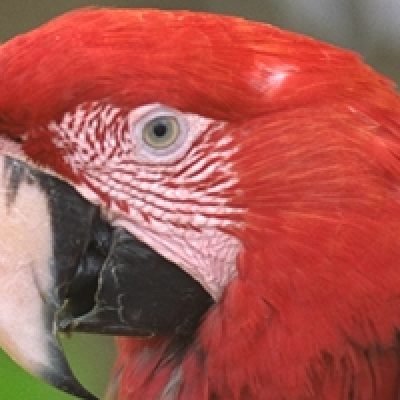
Original · 557,596 B
PNG, untouched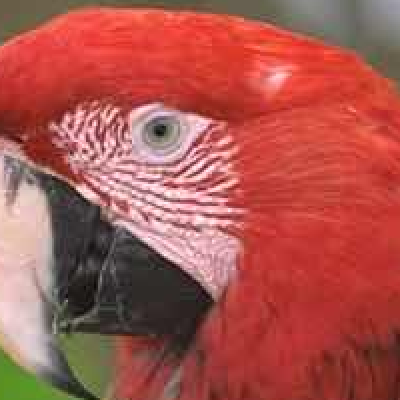
sips JPEG · 24,086 B
formatOptions 30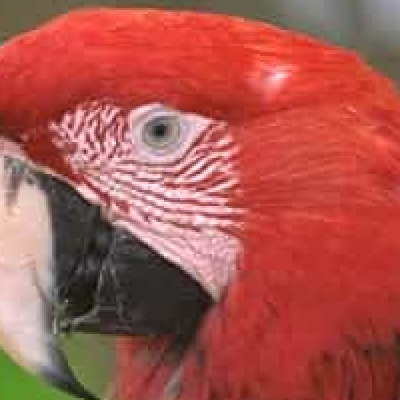
Caesium JPEG · 21,149 B
quality 50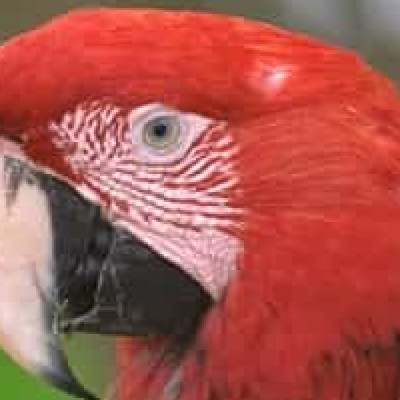
Smol JPEG · 20,877 B
quality 50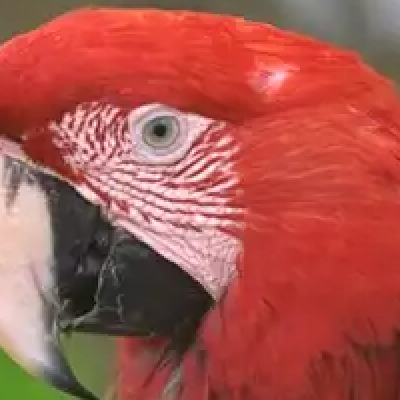
Smol WebP · 19,122 B
quality 60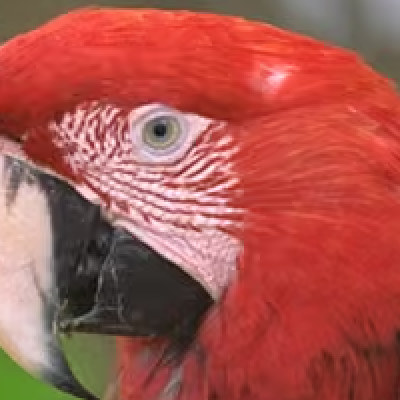
Smol AVIF · 21,080 B
quality 55
At that budget the JPEGs show their 8 × 8 blocks in the red feathers and around the eye. The AVIF spent the same bytes and kept the gradients smooth.
The short version: the JPEG encoders sit within 13% of each other, and a good AVIF saves more than that. Smol writes AVIF, WebP and a JPEG on a level with Squoosh’s, for a whole folder at a time.
Why does changing the format beat changing the app?
Because JPEG is thirty-four years old and AVIF is not. JPEG divides the image into 8 × 8 blocks and quantizes each one independently. AVIF inherits intra-frame prediction from a modern video codec, so it can describe a block as a variation on its neighbors. On flat gradients, sky and UI panels, that difference is large.
Three real sets of files from the test, all landing on nearly the same SSIMULACRA2 score. Smol’s JPEG at quality 80 turned the 24 images into 1,618,272 bytes at an average score of 76.3. Its WebP at quality 82 took 1,557,218 bytes for 75.7. Its AVIF at quality 65 took 1,218,465 bytes for 76.6: a quarter smaller than the JPEG for the same result.
Screenshots gain even more. In our first round, a Retina screen grab was 716,970 bytes as a sips JPEG at SSIM 0.991 and 241,943 bytes as a Smol AVIF at SSIM 0.995: 66% smaller and closer to the original. WebP is the awkward middle child. It beat JPEG clearly on SSIM and only matched it on SSIMULACRA2, so treat it as “JPEG with transparency” more than as a size win.
One interoperability wrinkle cuts against the free option. Apple’s AVIF encoder writes large images as a tiled grid. Pillow 12.1.0 refused to decode the 3,840 × 2,525 AVIF that sips produced, reporting “Invalid image grid”, and libavif’s own avifdec logged the same error before recovering. ImageMagick read it without complaint and so did sips itself. Every AVIF Smol produced decoded everywhere we tried. If other software has to read your AVIFs, test your decoder before committing to Apple’s encoder. The practical side of switching formats is in our PNG to WebP guide, and the agency workflow in Smol for web agencies.
Can you compress images on a Mac without losing quality?
Yes, with a lossless optimizer, and how much you save depends entirely on what is in the picture. ImageOptim rewrites a file without changing a single pixel. We checked in our first round of testing, on a mixed set of files: magick compare -metric AE returned an absolute error of 0 on all six outputs. The savings are wildly uneven:
| File | Before | After ImageOptim | Saved |
|---|---|---|---|
| logo-alpha.png · flat RGBA badge | 101,316 | 45,626 | 55.0% |
| screenshot.png · Retina screen grab | 2,293,996 | 1,509,114 | 34.2% |
| kodim08.png · detailed photo | 788,470 | 742,229 | 5.9% |
| kodim07.png · photo | 566,322 | 548,344 | 3.2% |
| photo.jpg · camera JPEG | 4,639,294 | 4,562,500 | 1.7% |
Read that as a rule: lossless optimization pays on flat graphics and screenshots, and barely registers on photographs. On the full 24-photo Kodak suite, ImageOptim saved 4.3% and Caesium’s lossless mode 4.5%. If your images are photographs, the only way to make them meaningfully smaller is to throw something away, and then the question becomes who throws away the least for the bytes they save. On those same 24 photos, Smol’s AVIF at quality 65 saved 92.1%.
Smol has no lossless mode. If you need pixel-identical output, use ImageOptim and keep your $29.
What is the best free image compressor for Mac?
It depends on which kind of free you mean, because four of these cost nothing and do different jobs.
| Free tool | Use it for | The catch |
|---|---|---|
| ImageOptim | Lossless PNG, JPEG and GIF, any number of files | Does little for photographs unless you turn on lossy mode; no WebP or AVIF; slow on PNGs |
| Preview and sips | One-off exports and shell scripts, including AVIF | No WebP, keeps EXIF, no batch window |
| Squoosh | Finding the right setting for one important image | One image at a time |
| Caesium | Lossy JPEG, PNG and WebP with a slider, in batches | JPEG quality tops out early; no AVIF |
Then there are the free tiers of paid apps, which are trials with a daily cap: Zipic at 25 images a day, JPEGmini at 50, Optimage at 24, and TinyPNG’s web tool at 20 images per upload. They are fine for deciding whether you like the app, and too tight to live on if images are part of your job.
A reasonable free setup is ImageOptim for graphics plus a sips loop for photographs. What that combination does not give you is WebP, an AVIF as small as ours (Apple’s needed 18 to 26% more bytes for the same score), metadata removal by default, or one window for a mixed folder. Those are the honest case for paying anyone, us included.
What happens when you have 500 images, not five?
The tools separate here, and most roundups stop paying attention. We timed the 24 Kodak PNGs, 15,394,305 bytes, through the three that can take a folder unattended.
| Tool | Wall clock | Output | Average score |
|---|---|---|---|
| caesiumclt, quality 90, JPEG | 0.2 s | 1,952,460 B | 75.9 |
| sips loop, formatOptions 50, JPEG | 0.6 s | 1,650,443 B | 75.6 |
| Smol, quality 80, JPEG | 7.4 s | 1,618,272 B | 76.3 |
| Smol, quality 65, AVIF | 7.8 s | 1,218,465 B | 76.6 |
Read that honestly. A sips loop is more than ten times faster than we are and costs nothing, and Caesium is faster still. The settings were chosen so all four land within one point of each other on SSIMULACRA2 (75.6 to 76.6), and each timing is the average of two or three runs. At those settings our JPEGs were 2% smaller than Apple’s and 17% smaller than Caesium’s while scoring slightly higher, and we stripped the metadata while doing it. If you are processing thousands of files on a schedule and JPEG is all you need, the shell loop is the better engineering answer. If you want the quarter that AVIF gives back, or you would rather drop a folder on a window than maintain a script, that is what the $29 buys.
ImageOptim splits by file type. On the 24 Kodak photos as JPEGs it finished in about 0.9 seconds, lossless or lossy, against about 7.1 for Smol. On the same photos as PNGs it took about 21 seconds lossless and 17 lossy, against about 9.5 for Smol. In our first round a six-file mix that included large PNGs took it 99 seconds.
Smol also exposes a Model Context Protocol server, so Claude Code, Codex and Google Antigravity can run it as a tool call. Every Smol measurement here went through that interface. It is a developer feature.
Does macOS have a built-in image compressor?
It has three, and none is labeled “compress”. Preview’s File → Export offers a format menu and a quality slider. Finder’s right-click Quick Actions → Convert Image re-encodes at one of four sizes. And sips does both from Terminal, with exact control.
All three use the same Apple encoders, so the quality you saw from sips above is the quality you get from Preview. They share its limits too: no WebP, your EXIF stays in the file unless you remove it, and nothing shows you a before and after. Every method is walked through, with its defaults, in our comparison of ways to compress images on a Mac.
Should you use a desktop app or an online compressor?
Use an online tool when the computer is not yours or the image does not matter. Use something local when the files are private, large or numerous.
“Online” covers two different things. TinyPNG uploads your image to its servers and sends back a smaller one. Squoosh loads an encoder into your browser tab and never sends the image anywhere, which makes it as private as a desktop app. The first kind comes with size and count limits because someone else is paying for the processing; the second is limited to one image at a time.
What an upload carries with it is easy to forget. A phone photo holds the place it was taken and the device that took it, and a compressor that keeps EXIF passes all of that along. If the photos are going somewhere public, remove the GPS data first, or use a compressor that strips it by default.
How did we test them?
On an Apple M2 Pro with 16 GB of RAM running macOS 27.0 (build 26A428), in two rounds. File sizes are exact byte counts from the filesystem.
Round two, 5 October 2026, is the comparison above. The corpus is all 24 images of the Kodak Lossless True Color Image Suite, the set codec developers have benchmarked against for three decades, and it is public so you can repeat the test. We ran Smol 1.0.35, sips (sips-316), caesiumclt 1.5.0, Zipic 1.10.2 on its free tier, and squoosh.app in Chrome 154. Each lossy encoder in the chart was run at between four and ten settings per image, and Squoosh’s JPEG at three, which produced more than 1,300 files.
Every one of those files was scored against its original twice: with SSIM, computed in NumPy with a Gaussian window (sigma 1.5) and averaged across red, green and blue, and with SSIMULACRA2 from libjxl 0.11.2. “Same quality” means we found the two settings whose scores sit either side of the target and interpolated the byte count between them. No encoder’s quality number means the same thing as another’s: Smol’s 75, Apple’s 75 and Caesium’s 75 produce three different pictures. The full tables, the row for every scored file and the scripts are on the benchmark page.
Round one, 25–26 September 2026, used Smol 1.0.34, ImageOptim 1.9.3 from imageoptim.com and sips, on a mixed set: three Kodak images, a Sony DSC-R1 photograph from Wikimedia Commons (CC BY-SA 4.0, EXIF intact), a Retina screen grab and a synthetic transparent badge. The ImageOptim results, the EXIF checks and the AVIF decoding finding come from that round. Smol’s JPEG output changed between 1.0.34 and 1.0.35, so we threw away round one’s Smol JPEG numbers and measured again.
Round three, 9 October 2026, put ImageOptim 1.9.3 and Smol 1.0.35 on the full Kodak suite, starting once from the PNG originals and once from the same images saved as JPEG with sips at quality 90, because ImageOptim keeps the format it is given. ImageOptim ran at its defaults and with lossy mode on at several quality settings. Outputs were scored against the original PNGs and matched the same way as round two. The method and every row are on the benchmark page.
What we did not do. TinyPNG, Compresto, JPEGmini and Optimage were not run: they are compared on their published capabilities, their own pricing pages, and in Optimage’s case an inspection of the shipped binaries. Zipic was limited to three images by its free daily allowance. The Kodak images are small, 768 × 512, and are all photographs, so these results say nothing about illustrations or 40-megapixel camera files. And two metrics are not eyes: look at your own images before you trust anyone’s chart, including ours.
When is Smol not the right answer?
Six cases, and all six came out of the testing above.
You need the pixels untouched. Smol has no lossless mode. ImageOptim does, it is free, and we verified it returns pixel-identical files. For archival masters, print-ready artwork or anything you will re-edit later, use ImageOptim.
You compress an image once a month. Preview’s export dialog is right there, it has a quality slider, and on a single file it is fine. Nobody should buy an app to do something twelve times a year.
You want a shell script. sips is installed, scriptable and writes AVIF and HEIC, and its JPEGs were within about 10% of ours. caesiumclt is faster and writes WebP. Just remember that sips cannot write WebP and keeps your EXIF.
You export JPEGs at high quality. At a score of 85 Apple’s encoder produced files 6% smaller than ours. Our advantage is at the web-sized end of the scale.
You need JPEG XL, SVG or ICNS. We do not write any of them. Zipic does.
You are compressing screenshots of colored text. At quality 75 and below our JPEGs use 4:2:0 chroma, which is the right call for photographs and the wrong one for saturated type on a colored background. Set quality to 90 or higher, where we switch to 4:4:4, or keep those files as PNG.
Frequently asked questions
What is the best image compressor for Mac?
For regular batches and modern formats, our pick is Smol: it writes AVIF, WebP and HEIC, takes whole folders, and costs $29 once. In our tests its AVIF files were 20 to 22% smaller than ImageOptim’s JPEGs and 15 to 21% smaller than Apple’s AVIF at the same quality score. We make Smol, and the comparison above includes measured results and its limits. For pixel-identical optimization, choose ImageOptim. For an occasional export, Preview is already installed.
What is the best free image compressor for Mac?
ImageOptim for lossless optimization of PNGs, JPEGs and GIFs, and the built-in sips command or Preview for lossy JPEG and AVIF. Caesium is the best free app with a quality slider and WebP output, and Squoosh is best for tuning one image in the browser. Free tiers of paid apps cap you at 24 to 50 images a day.
Can I compress images without changing any pixels?
Yes, with a lossless optimizer such as ImageOptim. In our tests it cut a flat-color PNG by 55%, and 24 photographs by 4.3% as PNG and 8.9% as JPEG, with zero pixel differences. Smol’s image compression re-encodes files and has no lossless mode, so it is not the right choice when every decoded pixel must stay identical. Keep your archival masters separately.
What do I get for the $29 purchase?
The Solo plan is a one-time purchase for one license that activates one Mac. It includes all of Smol’s features for compressing and converting images, PDFs, video and audio, with no monthly quota or subscription. The Apple Silicon build needs macOS 13 or later and the Intel build macOS 14 or later. There is no free trial and purchases are not refundable. The Team plan is $49 once for three licenses.
Why pay for Smol when Preview and ImageOptim are free?
Pay for the workflow if you regularly handle folders of images, need WebP or AVIF output, or want images, PDFs, video and audio handled in one app with metadata stripped by default. The free tools remain good choices: ImageOptim for pixel-identical optimization, Preview for occasional exports, and sips for shell scripts. In our tests Smol did not win every comparison and was not the fastest.
How do I batch compress images on a Mac?
Drop a folder into Smol, choose JPEG, WebP or AVIF and a quality, and compress. Our 24-image folder took 7.3 seconds on an M2 Pro. Smol resizes to fit 2000 × 2000 px by default, so raise that for large originals. Free routes: a sips loop in Terminal (about 0.6 seconds for the same folder as JPEG, with EXIF kept) or the Caesium app.
Is Smol better than ImageOptim?
For making photos smaller, yes. ImageOptim’s default is lossless, which took 4.3% to 8.9% off our 24 test photos. With its lossy mode on, its JPEGs were level with Smol’s JPEGs, but Smol’s AVIF needed 20 to 22% fewer bytes at the same quality score, and ImageOptim cannot write AVIF or WebP. ImageOptim is better when pixels must stay identical, for SVG, and on price: it is free.
Should I use AVIF or WebP for my website?
AVIF, where your site and its visitors support it. Across the 24 Kodak test images, Smol’s AVIF needed 22 to 26% fewer bytes than its own JPEG at the same SSIMULACRA2 score, and 41% fewer measured by SSIM. WebP landed close to JPEG on one metric and well ahead on the other. Smol writes both; keep a JPEG fallback where your publishing workflow needs one.
Smol for your work
- E-commerce teamsCompress and convert whole SKU folders for Shopify, Amazon, eBay and WooCommerce on your own Mac. Platform limits, settings and a batch workflow.
- Photographers & studiosGallery and portfolio limits from the platforms themselves, the Smol settings per deliverable, and the two defaults a photographer has to change.
Keep reading